

Smartphones today come with a wide range of applications, but not all of them are essential for daily use. Some apps are used every day, while others are opened once and then forgotten. Then there are those in between — apps that you don’t use every day but still need occasionally. These might include QR code scanners, language translators, or hotel booking apps, among others.
While these apps can be useful from time to time, they still take up valuable storage space on your device. You could delete them to save space, but when you need them again, you’ll have to go through the hassle of reinstalling them and setting them up all over again. To make this process easier, Android introduced the app archiving feature.
App archiving works by removing parts of an app from your phone, such as temporary files, permissions, and the software itself. This makes the app unusable, but it frees up storage space while keeping the app data on your device. The benefit is that you can easily restore the app to its original state whenever you need it. App archiving is one of the simplest ways to declutter your smartphone without resorting to a factory reset.
How to Archive Apps on Your Android Phone
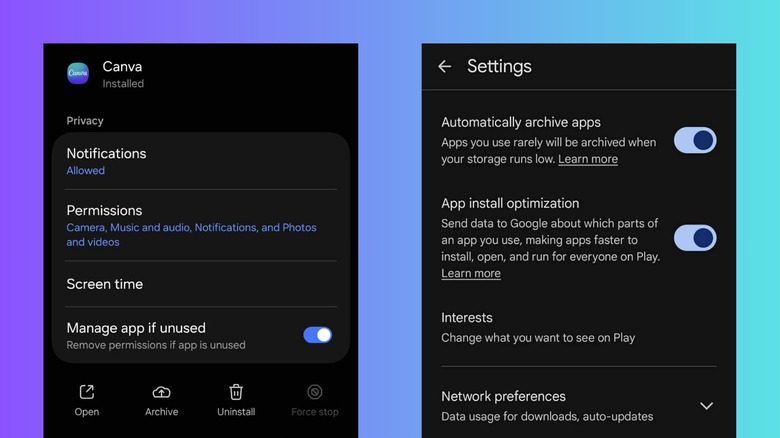
There are two main ways to archive apps on an Android device: automatically via the Google Play Store or manually through the Settings menu. If you have several apps that aren't being used regularly, the automatic method is more convenient because it archives them all at once, rather than one by one. It also helps manage your device's storage when it starts running low. Here’s how to enable automatic app archiving:
- Open the Google Play Store.
- Tap your profile icon in the upper right corner.
- Go to Settings.
- Expand the General tab.
- Toggle on Automatically archive apps.
Once enabled, the Play Store will automatically archive seldom-used apps when your phone starts reaching its storage limit. If you want more control over which apps to archive and when, you can manually archive them through the Settings:
- Open your Settings app.
- Choose Apps.
- Select the app you want to archive.
- Tap Archive at the bottom.
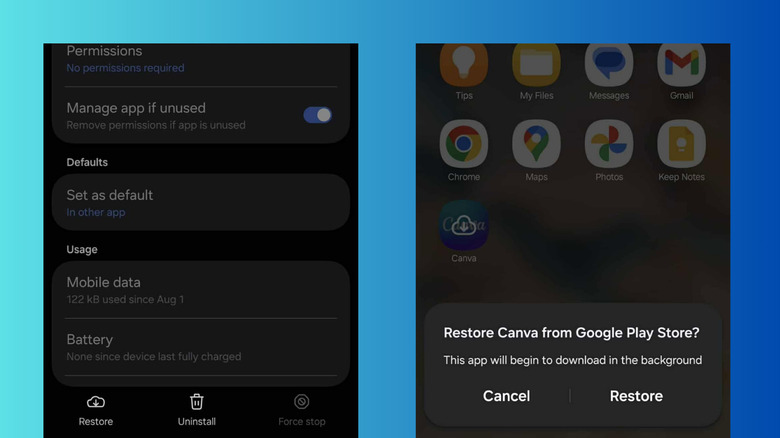
After archiving, the app’s settings page will be grayed out, and you won’t be able to access any of the options. In the app drawer, the archived app will appear dimmed and overlaid with an arrow icon.
How to Restore Archived Apps on Android
If you need to use an archived app again, restoring it is straightforward. You can do this either from the app drawer or through the Settings menu:
- In the app drawer, find the app and tap on it.
- In Settings, navigate to Apps > [archived app] and press Restore at the bottom.
The Play Store will re-download the app, so make sure you have an active internet connection. Once downloaded, the app should be ready to use within a few seconds. However, if your device is full, the restoration won’t proceed. In that case, delete some old files or apps to free up storage on your Android.
If you want to prevent the Google Play Store from automatically archiving certain rarely used apps, you can opt out of the archive feature for those specific apps:
- In Settings, tap on Apps.
- Select the app you want to exclude from automatic archiving.
- Toggle off Manage app if unused.
This way, even if you don’t open and use the app frequently, it will remain in your app drawer and be ready for you to access anytime.
Post a Comment